 Kiss918 Hub
How to Install Kiss918 on Samsung Galaxy
Samsung phones block apps from outside the Galaxy Store and Google Play by default. Here's how to install the Kiss918 APK in 4 steps, with a picture for each step.
Turn off Auto Blocker, download the APK, allow your browser to install unknown apps, then open Kiss918. Turn Auto Blocker back on afterwards.
Step by step
-
Turn off Auto Blocker
Open Settings › Security and privacy › Auto Blocker and switch it off. Samsung may ask for your PIN.
Don't see Auto Blocker? Your phone has an older One UI. Skip to step 2.
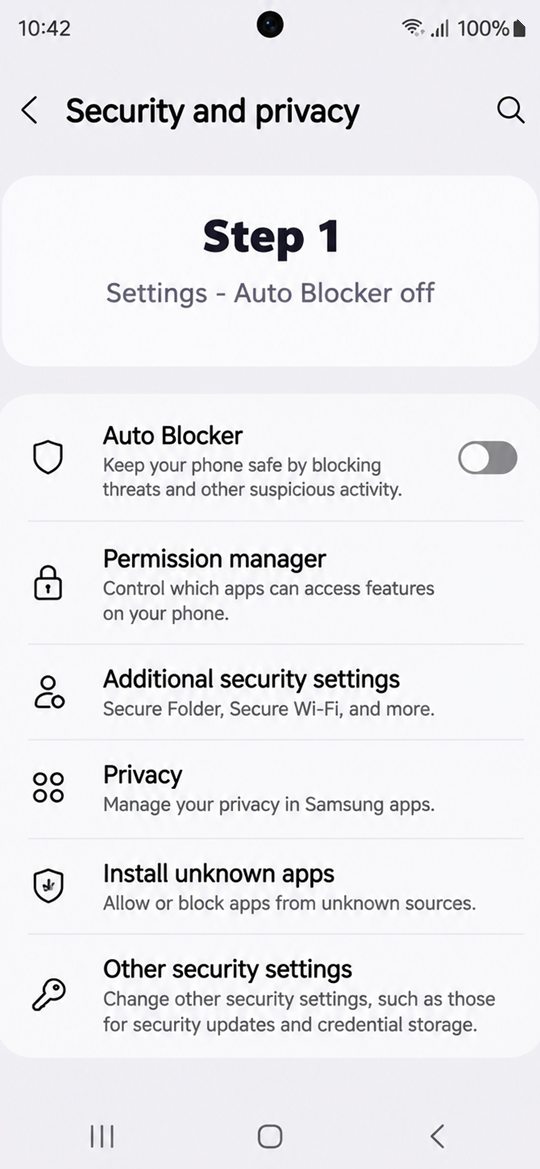
Auto Blocker off -
Download the APK
Go to our download page in Chrome or Samsung Internet and tap Download APK. If the browser warns that the file may be harmful, tap Download anyway.
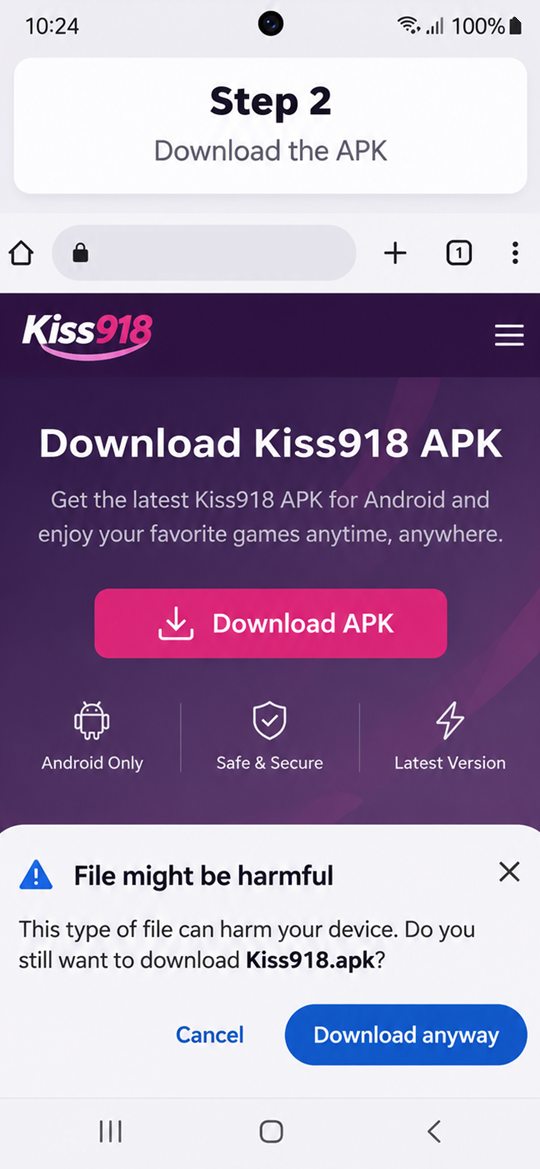
Download in the browser -
Allow "Install unknown apps"
Tap the downloaded file. When Samsung asks, tap Settings and turn on Allow from this source for your browser, then go back and tap Install.
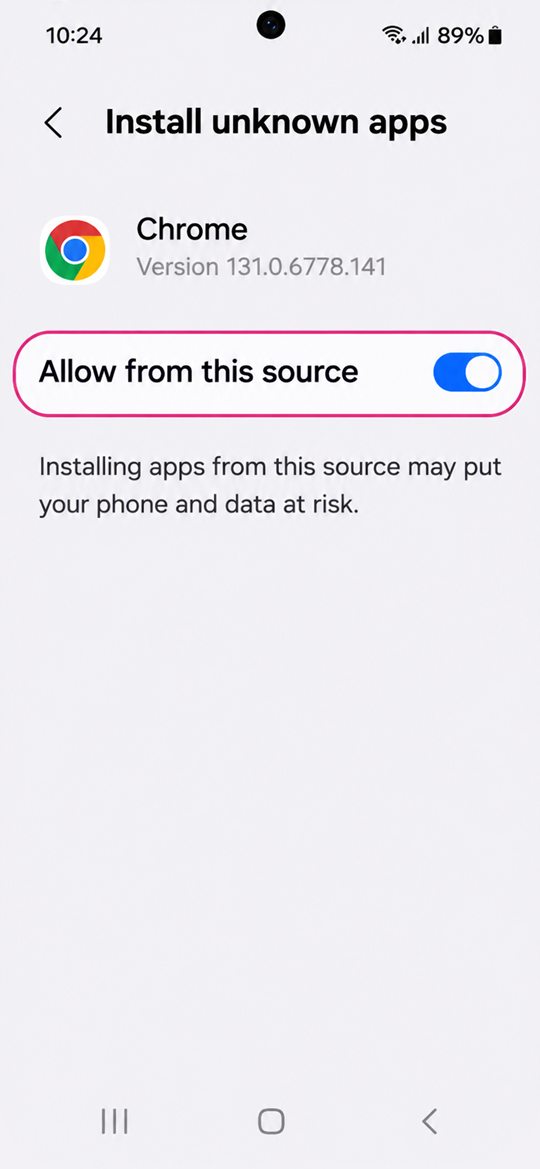
Allow from this source -
Open Kiss918 and log in
Tap Open, then log in with your ID. Now go back to Auto Blocker and switch it on again. The app stays installed.
No login ID yet? Message us on WhatsApp.
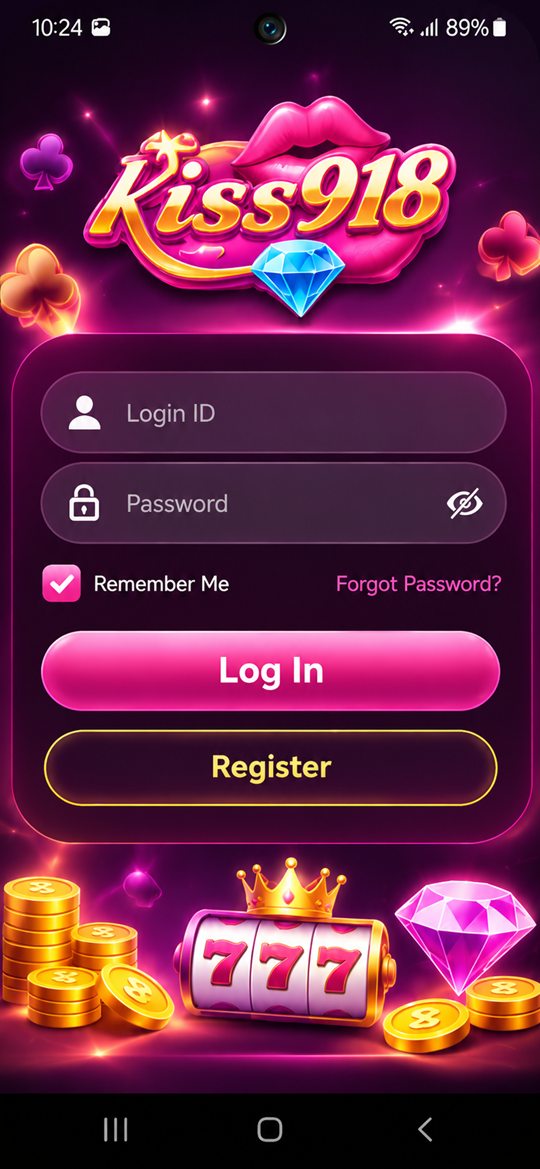
Log in
The pictures show what to look for. Your phone's screens may look a little different.
If it still won't install
Other phone brands
All guides




Samsung questions
Is it safe to turn off Auto Blocker?
Only keep it off while you install a file you've checked, then turn it back on. Compare the file's SHA-256 with our File check first.
Will turning Auto Blocker back on remove Kiss918?
No. Auto Blocker only stops new installs from outside the Galaxy Store and Google Play. Kiss918 stays installed, but you'll need to turn Auto Blocker off again to install an update.